
Frequently asked questions
Have questions? We're here to help.
We get this question a lot.
Aretas is a word from ancient Greece. it means the greatest of the gods.
Winners of the Olympics in ancient Greece were said to have aretas, and be as great as the god.
When we heard this explained in a sports science book called "Top Dog the science of winning and losing by Po Bronson and Ashley Merryman, we knew we had found our company's name.

Here is a link to amazon to see the book.
(we don't earn any money if you buy the book)
Congrats on signing up for a team competition.
Let's get your team sorted.
- First Log in and head to the competition homepage
- On the competition home page, you will see a button called "Your Team" - click on it
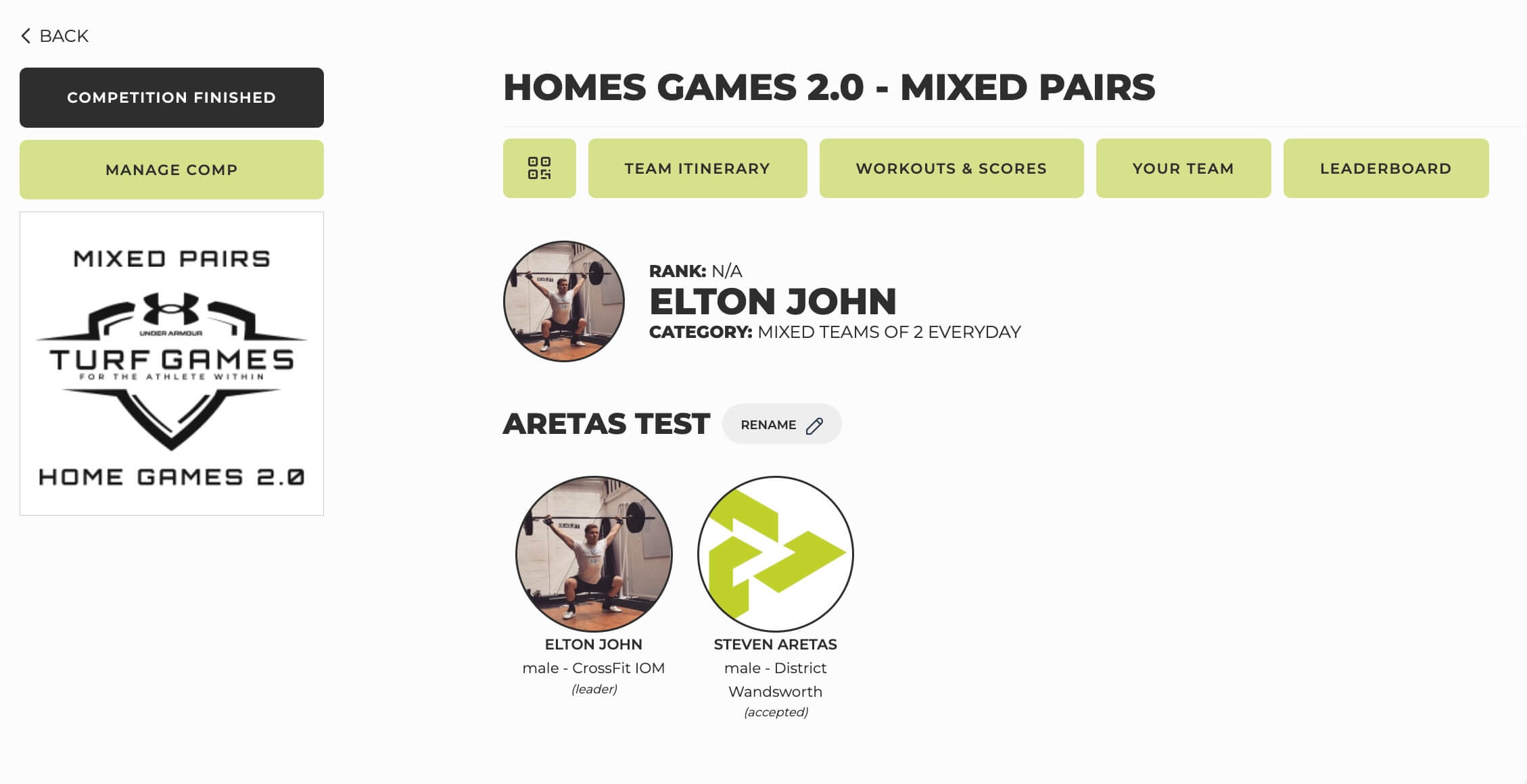
This will take you to the manage team page
- Scroll down the page and you will see the option to invite your teammate
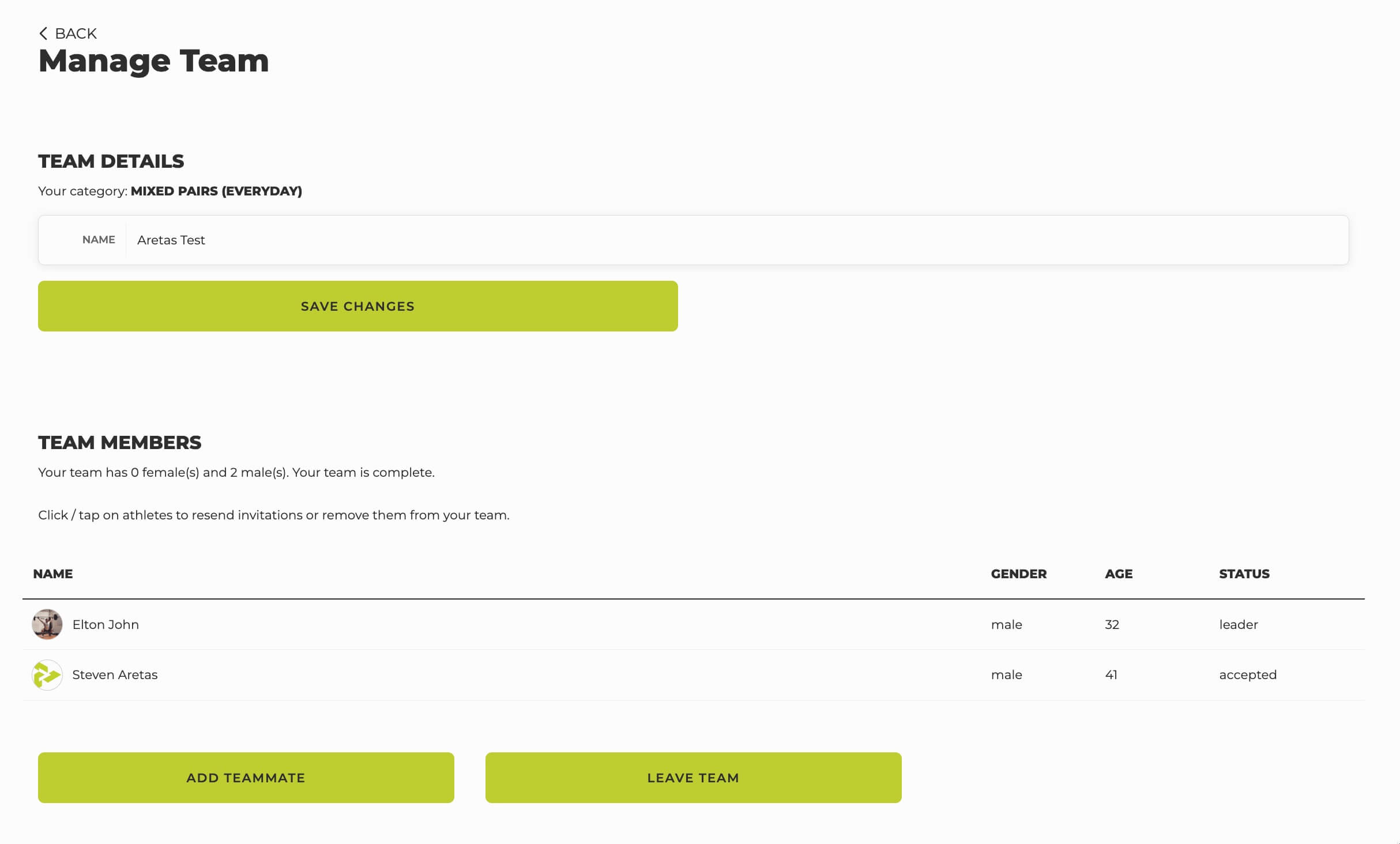
- You can choose to look up your athlete by name/email or invite someone new.
- We will now send them an invite to accept your invite for the team
Sometimes these emails can get lost in people's junk/spam folders, so drop your teammates a message and let them know the invite has been sent
- You will see a status next to their name/email. "Pending" means the invite still hasn't be accepted
Note: in order to accept an invitation your teammate only needs to login on the website and accept the invitation which will be automatically displayed to them.
On the day of the competition, you will need to sign in all the athletes to be able to add their workout scores.
To sign the athletes in, log in and go to the manage competition section, scroll down to the registration section and click on athletes.
You will then see a list of all the athletes or team names. Use the filter or search to help find specific individuals or teams.
For individual competitions, click on the grey X to the right of the athlete’s name to turn it green. The athlete is now signed in for the competition.
For team competitions, click on the team name and a pop will appear, tick all and then everyone is signed in for the competition or you can tick each name to sign in individuals separately.
Once teams and participants are signed in, their names will appear in the manage score section and on the leaderboard.
All invoices created for organisers by Team Aretas are stored on your dashboard, to access them, log in and head to your dashboard.
You will see a quick link to your invoice on the white screen
some text and a url https://www.team-aretas.com ...
To simplify things, ticket sales are paid out on the 1st of each month.
On your bank statement, it will appear as "TEAM ARETAS PAYOUT"
Stripe takes five working days to process ticket sales, any ticket sold after the 25th of each month won't be processed, they will be in the following month's payout.
You can download a breakdown of all tickets included in a payout from the payout. section. of your dashboard
To help you keep track of your competition earnings there are two reports you can download.
The first is the Ticket Revenue Report which lists out the total amount of tickets sold for each competition. log in and go to the manage comp section, scroll down to the Revenue section and click on Tickets, you can review the ticket sales or download them to via the export button.
The second is the Payout Report which sets out what you will be paid for each month across however many competitions you are running. log in and go to your dashboard in the top right-hand corner of your screen, in the grey menu click on the Pay-outs section.
Between these two reports you can see your total competition revenue and you can see your monthly cash flow of ticket sales to help you keep track of your earnings.
First, check that there is space in the category you want to move the participant to. Do this by logging in and going to the manage comp section, scroll down to the competition setup section, then click on categories and click on the name of the category.
If there aren’t any spaces left in the new category, you will need to add new spaces first before you can move the participant.
To move the participant to the new category, head to the Participants section and click on team or athlete.
To the right hand of their name are three buttons, you can use the arrow buttons to move the participant to their new category.
To create a workout, log in and go to the manage competition section, scroll down to the competition setup section and click on Workouts.
At the top of the page click on the Add button and follow the steps to fill out the workout details
Top Tips:
- You can create workouts in advance and set them as hidden if you don’t want athletes to see them yet.
- To make a workout public at a specific time, you can schedule its visibility.
- If you set the status of the workout to hidden, remember to change it back to public on the day of the competition.
- Workouts must be public for the leaderboard to display them.
- If you have a workout that is an AMRAP (As Many Rounds as Possible) format, score it as total reps completed as this makes it easier for participants to compare their performances.
Before making heats you need to have created workouts.
Once the workouts are set up, log in and go to the manage comp section, scroll down to the comp setup section and click on Heats
From here just enter the number of participants/ teams you want in each heat as the capacity and the system will organise it for you. You can also move individual participants/ teams around if you need to.
Lastly, if your competition involves a final, you can set this up by going to Stages but please contact us directly for support on how to set up and run knock-out stages to reach a final.
Top tip: the final is not the same as the last workout for all your participants! A final is
to be used when knock-out stages have been used to reduce the field so it is made up of your top competitors like you would see in a World Cup.
To transfer the captaincy of your team to someone else, they first need to be part of the team. If they haven't been invited already, please send them an invitation. Once they have accepted, you can transfer the captaincy to them.
To transfer the captaincy, go to the "Manage Team" page, scroll down to find the "Leave Team" button, and click on it. You will then be guided through the steps to assign a new captain and remove yourself from the team.
I’ve been invited but not received an invite email.
This isn’t a problem, emails get stuck in spam folders and filters all the time.
If you already have an account then login on Team Aretas, if you don't then register yourself using the email address your team leader sent you the invitation to. The invite will then appear for you on the website automatically.
If it doesn’t, double check you have been invited with your correct email or double check to see which email you signed in with.
This isn’t a problem, link in email can break or be blocked by your browser.
search for Team Aretas in Google and log in, the invite will appear for you to expect.
if it doesn’t, double check you have been invited with your correct email or double check to see which email you signed in with.
The organiser of the competition can close the change team name function, this allows them to do the final admin for the competition.
if this is the case, you will see a message on the manage team page saying you can no long change the team name.
where possible we give you the organiser email address, you can contact them directly and ask really nicely.
- Scores are entered manually in the Manage Scores section.
- Use filters to quickly find athletes/teams and workouts.
- Click Save regularly to update the leaderboard as you go.
Yes! You can mark workout scores as public or not public:
- If a workout’s scores are not public, they won’t appear on the leaderboard or affect rankings.
- When you’re ready, tick the public switch to include them instantly.
Yes, scores can be updated at any time in the Manage Scores section.
To ensure your competition runs smoothly and the leaderboard functions correctly, follow these steps:
✅ Create Workouts – Go to the Workouts section and add workouts. Set them as hidden if you don’t want them visible yet.
✅ Make Workouts Public – Workouts must be public for the leaderboard to display them. You can schedule visibility changes in advance.
✅ Register Athletes – On competition day, go to the Registration section and mark athletes/teams as present. Only those marked as present will show on the leaderboard.
✅ Enter Scores – Head to Manage Scores to input results manually. Save regularly to update the leaderboard.
✅ Control Score Visibility – If needed, mark workouts as not public to hide scores until all results are in. Enable them when ready.
Once these steps are complete, your leaderboard will update automatically as scores are entered!
Seeding Categories Setup Guide
Note: This feature is available to premium monthly subscribers only.
Seeding categories allow athletes to register under broad category groups (e.g., Male Teens instead of Male Teens Rx/Scaled). Organisers can then assign athletes to specific difficulty-based sub-categories later, based on their performance in seeding workouts.
1. Setting Up Seeding Categories
Configuration starts on the competition creation page:
- Add all competition categories, including sub-categories (Rx, Scaled, etc.). This enables the seeding category option.
- Select the category groups to act as seeding categories. Athletes will sign up for the broader seeding category rather than specific sub-categories.
- Example: If you create Female Pairs Rx and Female Pairs Scaled but select Female Pairs as a seeding category, athletes will only see Female Pairs as an option at registration.
2. Managing Seeding Workouts
- On the Manage Workouts page, create workouts for both the seeding category (e.g., Female Pairs) and its sub-categories.
- Athletes can submit scores to the seeding workouts before the competition. You can control this further by setting release dates and submission deadlines.
- Organisers can also manually submit or edit scores on the Manage Scores page.
- This process allows athletes to be seeded into difficulty-based categories before the event begins.
3. Assigning Athletes to Sub-Categories
Once seeding workouts are completed and scores submitted, go to the Seeding page in the admin panel:
- Select a seeding category (e.g., Female Pairs) to view all registered teams, ranked by their seeding workout scores.
- Assign teams to sub-categories (Rx, Scaled) individually or in bulk.
- Click Save & Publish to finalise the assignments and notify teams via email.
4. Competition & Leaderboard Rules
- After seeding, the competition runs as usual, with teams now placed in their respective sub-categories (Rx, Scaled).
- On the leaderboard, all categories remain selectable (Female Pairs, Female Pairs Rx, Female Pairs Scaled).
- Female Pairs will display all teams but only their seeding workout results.
5. Resetting Points (Optional)
On the Seeding page, you can choose whether to reset points for each sub-category:
- If reset, seeding workout results won’t count toward overall standings in that sub-category (e.g., Female Pairs Rx).
- If not reset, seeding workout scores remain visible and factor into overall standings.
Only completed ticket purchases. Nothing is sent about someone who looked at your competition and did not sign up.
For each purchase we send:
- That a purchase happened, with its value and currency
- Which competition it was for
- A hashed version of the athlete's email, phone, name, city, postcode and country, so Meta can match them to an account
Nothing identifying leaves us in the clear. Those details are hashed first, and we cannot un-hash them any more than Meta can.
Athletes who decline advertising cookies are never tracked at all. Your reported conversions will therefore always be lower than your real entries, which is expected. Use them to compare campaigns against each other, and use your Payments page for the real total.
The value reported is the entry's normal price rather than the cash taken, so an athlete who used a voucher still reports at the ticket price. The point is to tell Meta what kind of person to go and find, and that person is worth the same either way.
Meta used to call this your pixel ID. It is a long number, not a name.
- Open Meta Events Manager
- Choose Data sources in the left-hand list
- Click the dataset you use for your competitions
- The ID sits under its name, 15 or 16 digits long
Copy the number itself, not the name. If you have several and are not sure which is live, pick the one your ad account is already using: Events Manager shows recent activity against each.
Paste it into Organiser profile, Integrations, Meta ads, and turn the switch on. You need a paid plan, and you will be asked to accept the data protection responsibilities first, because the data lands in your dataset and you are its controller.
Work through these in order.
- Give it a day. Entries arrive unevenly and one quiet afternoon tells you nothing.
- Check the switch is on and the ID saved in Organiser profile, Integrations, Meta ads.
- Check you are looking at the right dataset. The commonest cause by far is an ID copied from a different ad account.
- Check your plan. Advert tracking is a paid-plan feature and nothing is sent on the free trial.
- Check the competition itself. A single competition can be set to use its own dataset, or to have tracking switched off, from its Edit competition page.
If events ARE showing but marked deduplicated, nothing is wrong. We report every purchase twice on purpose, once from the athlete's browser and once from our server, both carrying the same event ID so Meta merges them into one conversion. The server copy is the one that matters: it still arrives when a browser blocks the pixel, or when the athlete closes the tab the moment the payment goes through.
You do not set up the sign-up step itself. It lists whatever you are already selling, so the only work is having something to sell.
- Parking and camping live under Market place, Extras on your competition. Add an item, give it a name and a price, and that is enough.
- Spectator tickets live under Market place, Spectators. Each ticket type you add appears in the same step.
Athletes then see a step headed Anything else? after they have picked a category and signed the waiver. It shows a quantity against each item, and adding nothing is a perfectly good answer. Everything they do add goes into the same basket as their entry and is paid for in one go.
If you sell neither, the step is skipped and your sign-up is exactly as it was.
Two settings on an extra are worth knowing:
- Capacity. Leave it blank, or set it to 0, and the item is unlimited. Any other number is the total you will sell.
- Limit per team / entry. The most one entry can take. On a team competition a teammate buying one counts towards the team's limit, not their own.
While an athlete is deciding, what they have picked is held for them and released again if they walk away, so an abandoned basket never sits in your capacity.
Yes. Someone buys an entry and two parking passes, then finds they only need one. You give back exactly that one pass, and the rest of the purchase, including their place in the competition, stays as it was.
- Open Revenue, Payments on your competition
- Find the purchase and open it
- Press Refund this item on the line you want to give back
Refund this whole purchase is there too, and refunds every line that has not already been given back.
The money goes back the way it came and usually lands within five to ten working days. It comes out of your own balance, so if a refund is bigger than what you are currently holding, the shortfall is recovered from your next sales. A refunded pass stops working at the gate straight away.
An extra bought before this change was its own separate payment, so it was always refundable on its own. What is new is that an extra bought in the same basket as the entry can now be refunded on its own too.
Work through these in order.
- You have to be selling something. The step only appears when the competition has at least one item under Market place, Extras, or at least one ticket type under Market place, Spectators. With neither, it is skipped on purpose rather than shown empty.
- Check the item is on this competition. Extras belong to one competition, so an item added to last season's event does not carry over.
- Check it is not sold out. A capacity counts baskets in progress as well as confirmed sales, so one abandoned a few minutes ago can make the last place look taken. It frees itself.
- Check "participants only". An item set that way is hidden from anyone who is not a confirmed competitor.
- Look at it as an athlete would, from the sign-up itself, rather than from your organiser pages.
We are switching this on competition by competition. If everything above checks out and the step is still missing, yours is not switched on yet: email info@team-aretas.com with the competition name and we will turn it on.
You give us one web address. Every time somebody finishes paying for a place in one of your competitions, we post the details of that sale to it, within seconds.
Each sale carries which competition it was for, which entry and category, the buyer's name and email, the amount and currency, and an event ID.
Set it up in Organiser profile, Integrations, Purchase webhook. It is set once for your whole account rather than per competition, and it is a paid-plan feature.
You do not have to write any code. Point it at Zapier, Make or n8n and drag the sale wherever you want it: a message to your phone, a new row in a spreadsheet, a contact added to your mailing list. If you do want to write your own endpoint, the exact body we send is printed on the page, and Send a test event posts that same body to your address so you have something real to build against.
Two things worth knowing:
- The event ID never changes for a given sale. If the same one arrives twice, it is the same sale and the second copy can be ignored.
- Only purchases that include a competition entry are sent. Somebody who is already entered coming back later to buy a parking pass on its own does not produce one, on purpose.
Do not paste a Slack or Discord webhook address straight into us. Those expect their own message format, so the sale would arrive as nothing at all. Put one free step in between and it takes about five minutes.
With Zapier
- Make a new Zap and choose Webhooks by Zapier, then Catch Hook
- Copy the address it gives you into Endpoint URL in Organiser profile, Integrations, Purchase webhook, and save
- Press Send a test event so Zapier has a real example to build from
- Add a Slack or Discord step and write the message out of the fields, for example: New entry for {{competition title}}, {{buyer name}}, {{entry category name}}
With Make, the trigger is Custom webhook. Add one, copy the address, paste and save it with us, then press Run once in Make before sending the test so it captures the shape.
With n8n, use a Webhook node, and mind that it gives you two addresses. The Test URL only listens while you are watching the canvas. Use the Production URL and activate the workflow, or real sales will arrive nowhere.
Zapier, Make and n8n cannot check the signature we send, and do not need to: the address they give you is long and random, so the address itself is the secret. Treat it like a password, and if it ever gets out, generate a new one and paste that in instead. The signature is there for when you write your own endpoint.
Start with Send a test event in Organiser profile, Integrations, Purchase webhook. It posts straight away and tells you what your server actually answered, which is usually the whole answer. A test is not a sale, so it never appears in Recent deliveries.
Then work through these.
- Look at Recent deliveries. A failed delivery says so and has a Retry beside it.
- Check the address. It has to start with https, be reachable from the internet, use the standard port, and carry no username or password. We will not follow a redirect either, so give us the final address rather than one that forwards.
- Answer quickly. We wait fifteen seconds for a 2xx. After that we count it as failed and try again after one minute, five minutes and twenty five minutes, then stop.
- Check the switch is on and your plan is current. It is a paid-plan feature, and nothing is sent while it is off.
- On n8n, check you used the Production URL and that the workflow is active. The Test URL only listens while the canvas is open, which is the commonest cause of a workflow that worked once and then went quiet.
- Check it was a sale we send. Only purchases that include a competition entry produce one. Somebody already entered buying a parking pass or a spectator ticket on its own does not.
If the same sale arrives twice, nothing is wrong. Every delivery carries an event ID that never changes, so the second copy is the same sale and can be ignored.
Still nothing, and the test event reports success? Email info@team-aretas.com with the competition and roughly when the sale went through.
Can't find your answer?
Entered a competition? Its organiser can answer anything about the event. For your account, payments or anything not working, contact us.